How to Request and Order Your Medication on the CB1 Patient Portal
How to Request and Order Your Medication on the CB1 Patient Portal
With the new CB1 Medical Patient Portal, managing your prescriptions is faster, clearer, and more secure than ever. Whether you’re requesting a repeat prescription or placing an order for approved medication, this guide walks you through the full journey from start to finish in a clear, patient-friendly way.
Contents
Starting your repeat prescription request
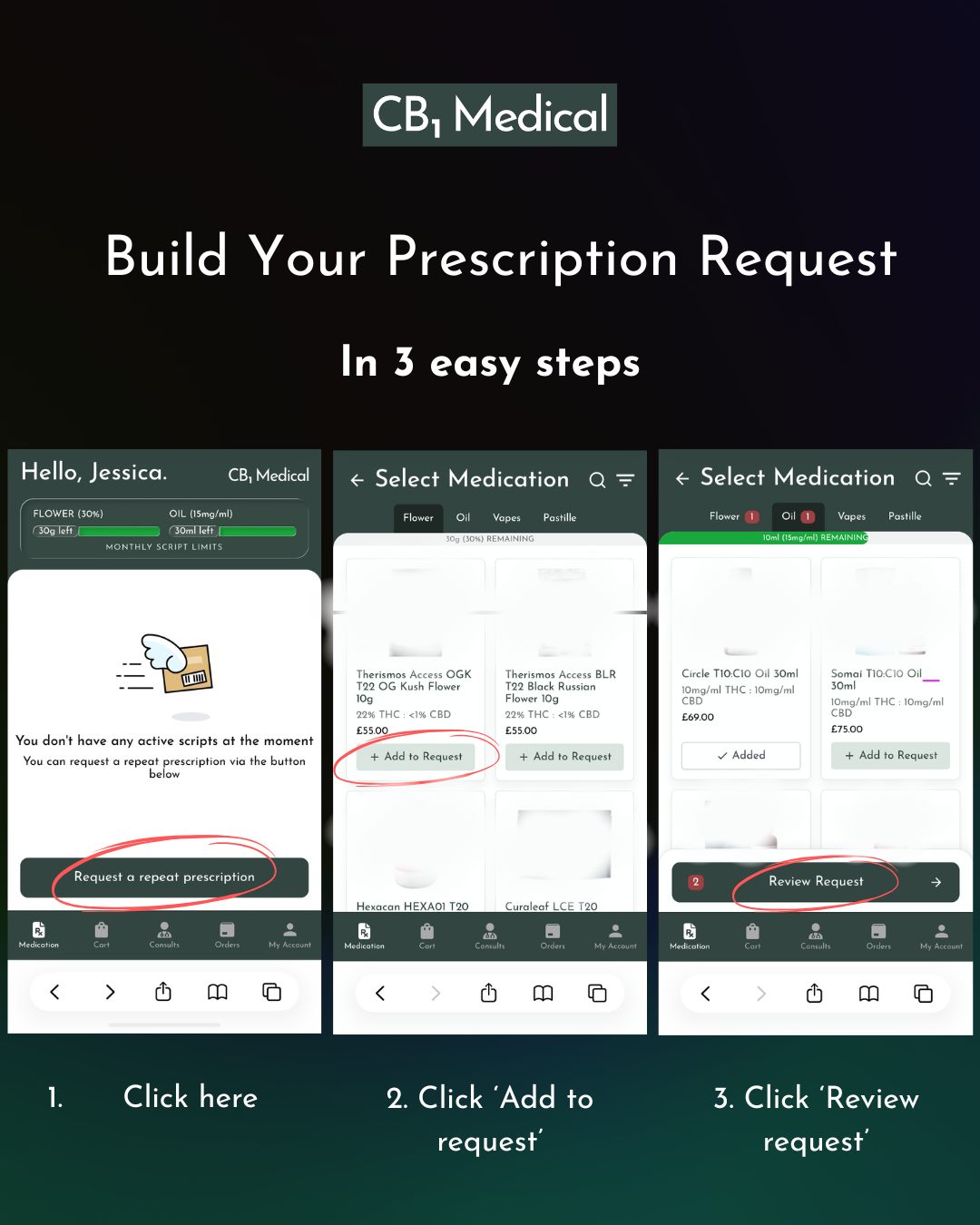
To start, head into the Patient Portal and choose “Request a repeat prescription.”
You’ll see all the medications you’ve previously been prescribed. Just tap “Add to Request” on the ones you need this month — they’ll appear in your request list straight away so you can keep track.
If you’re approved for more than one type of medication, you can switch between categories (like flower, oils or capsules) using the tabs at the top. Add anything else you need to your request in the same way.
Adding medications to your request
When you’re happy with your selection, choose “Review Request” to check it over before sending it for approval.
Reviewing and submitting your request
Once you’re happy with your selection, choose “Review Request” to check it over before sending it for approval.
Placing an order after approval
Our doctors will review your prescription request within 1 business day. Once reviewed, we’ll send you a text straight away, letting you know that your new prescription is ready.
Click the link featured in our text message to you to be conveniently redirected to your CB1 patient portal.
Once your clinician has approved your request, you’ll be able to place an order.
The steps below walk you through exactly how to do that.
Opening Your Approved Prescription
- Open the approved prescription you want to order from your Dashboard or the Prescriptions tab.
- Review the prescription details (product, strength, quantity, and instructions) to make sure everything looks correct.
- Scroll down to the ordering section — this shows the approved items available for you to order.
- If your prescription contains multiple approved items, select the ones you’d like to include in your order.
Adding approved medication to your order
Adding Approved Medication
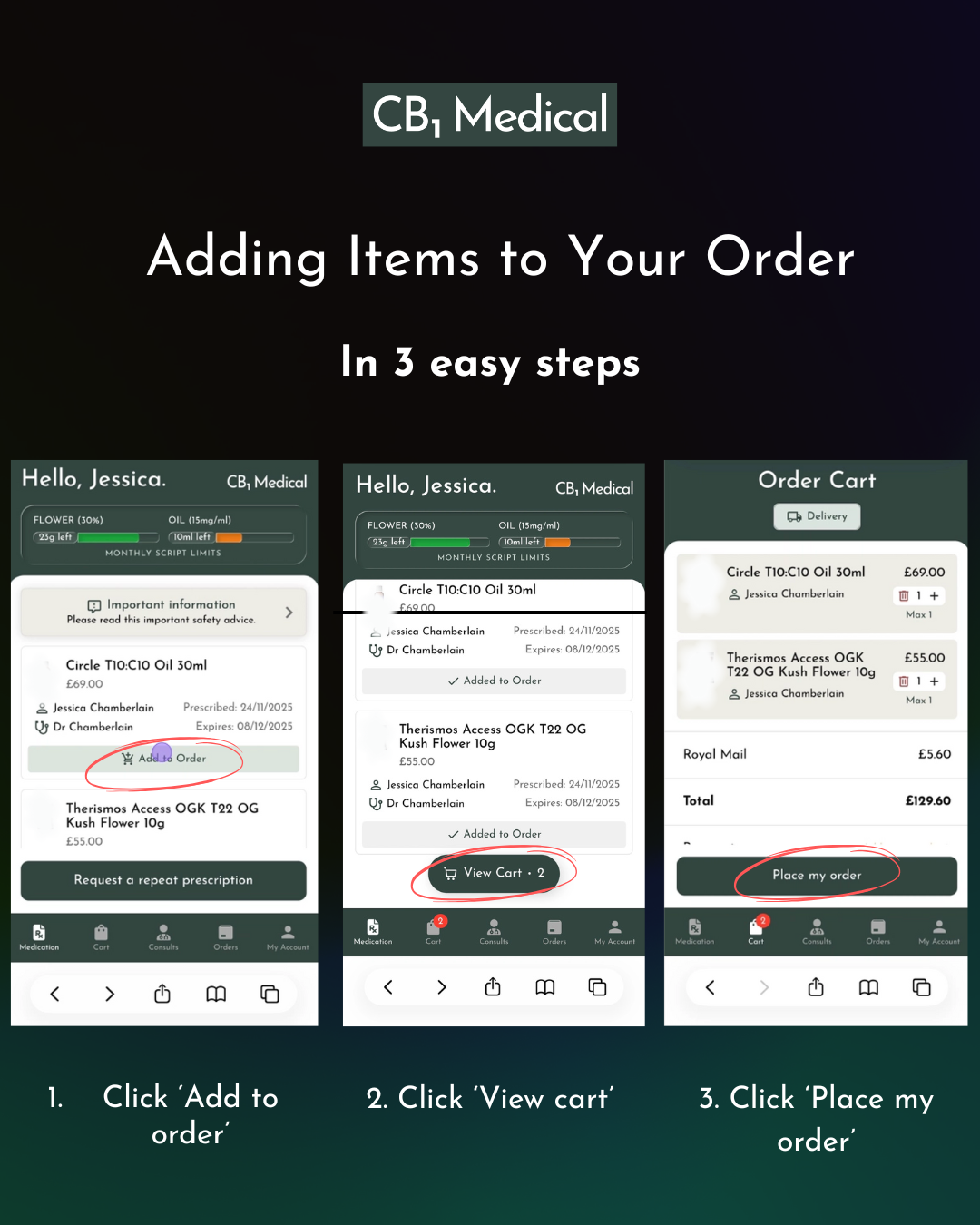
Click “Add to Order” next to each approved medication you want to purchase.
Repeat this for any additional items you would like included.
Viewing Your Cart
When you’re ready, select “View Cart” to open your order summary.
Reviewing your cart
Reviewing Your Order Cart
Here you can:
- Check all items are correct
- Update quantities
- Remove items
- Go back and add more if needed
Make sure everything looks right before moving on.
Adding payment details
Adding Your Payment Method
- Select “Add your card.”
- Enter your credit/debit card details (card number, expiry date, CVC, and name).
- Choose “Save” to securely store your card details.
Placing your order
Once everything is correct in your cart and your card is saved, click “Place my order.”
Your order will be submitted instantly, and you’ll receive confirmation once it’s being processed by the pharmacy.
You’re All Set
Your order will now be prepared by the pharmacy. You’ll receive updates as it progresses, including dispatch and tracking information (where available).
If you need additional help, you can reach our team at enquiries@cb1medical.com — we’ll be happy to guide you.
